Posts
A Spider Inside an iMac Display
Well, that isn’t something I thought I’d ever see.
Easy
Eric Schwarz, writing about the perspective that outsiders can have on the difficulty of skilled roles:
There seems to be a notion from those that are not technologically-inclined that anyone who works with technology can easily do anything, be it a desktop support technician, network engineer, database administrator, programmer, designer, etc. I’ve always taken it as a bit of a compliment that my skill set is valued and that I am seen as a resource, but increasingly the expectation of more impossible demands from outside parties has been coming across my desk.
I have definitely experienced this, and I’m sure people in a wide range of professions experience something similar.
World of Warcraft: Battle for Azeroth - Ads
For the upcoming release of World of Warcraft: Battle for Azeroth, Blizzard has released 4 short adverts, which seem very Apple-like.
If you’re not a World of Warcraft player, the only background knowledge you need is that at the heart of the game, there are two factions (Alliance and Horde) which you’re character has allegiance with. This expansion returns the game to the roots of the fight between the two factions.
Bus
Elevator
Kid’s Choice
Rainy Day
Fantastic Beasts: The Crimes of Grindelwald - Trailer
This seems every better than the first film! I’m very much looking forward to seeing a younger Dumbledore.
Hyacinth Macaw Grow From Egg to Free Flying
Watch a Hyacinth Macaw grow from just an egg, into a full grown bird free flying in Indonesia.
These really are amazing animals.
iOS is the Best Platform for Google Apps
…if you want the best Google software, iOS is really the place to be.
That sounds crazy, and maybe for some people it is, but as someone who relies heavily on Google’s software in both my personal and professional life, iOS has been a great platform for getting everything done that I need to do. Not only that, but a shocking amount of Google apps are updated first on iOS or are totally exclusive to iOS for months before going to Android. And with new apps like Files and updates to Siri intents, Google’s apps can interact more closely with iOS than they could in earlier versions of iOS.
I can’t say I’m well versed in the Android ecosystem, but I am aware of it. I pay attention to Google I/O announcements, and of course, there’s an Android developer at work so I have at least some perspective.
The only, or at least the biggest issue I can determine, is the obvious levels of fragmentation. This used to be the argument of app design, and quality, where iPhones used to be just the one size, and Android already had loads of variety.
The fragmentation I think causes these problems is the multiple Android vendors and mobile networks, that introduce needless bottlenecks to the whole platform. Whether it’s a small update that will get ignored by certain manufacturers or a major release which will take extra time for a company like Samsung (just picking one at random) to add their software on top, before shipping it to consumers. I just don’t think the wide varieties of Android phones combine to make a stable ecosystem.
That’s a whole lot different with iOS though because there’s less device variety, a higher percentage of users are on the latest version of the OS, and the App Store is a widely known success. I think this is why Google do so well. Because they can leave the foundation work to Apple, and that leaves them with just the software. And I can admit they can make pretty good software.
Why You Should Never Pay For Podcast Hosting
Nir Zicherman, co-founder and CTO of Anchor:
Back in the day, you would have had to pay to host video online. But you would never do that today (thanks to services like YouTube, Vimeo, Twitch, and plenty of other free video hosting platforms). Back in the day, you would have had to pay to store your photos online. But that outdated business model has virtually disappeared thanks to platforms like Google Photos, Instagram, Imgur, and others. At Anchor, we believe the notion of charging creators to host their content online is antiquated and unfair. And above all else, it serves as a barrier that prevents the podcasting ecosystem from growing and becoming more diverse, because it limits it to only those voices who can afford to pay.
I must admit, the headline caused me to instantly question the article. But it completely turned me around. Anchor seem to be doing some great things in podcasting, and it’s very interesting to see the platform constantly growing.
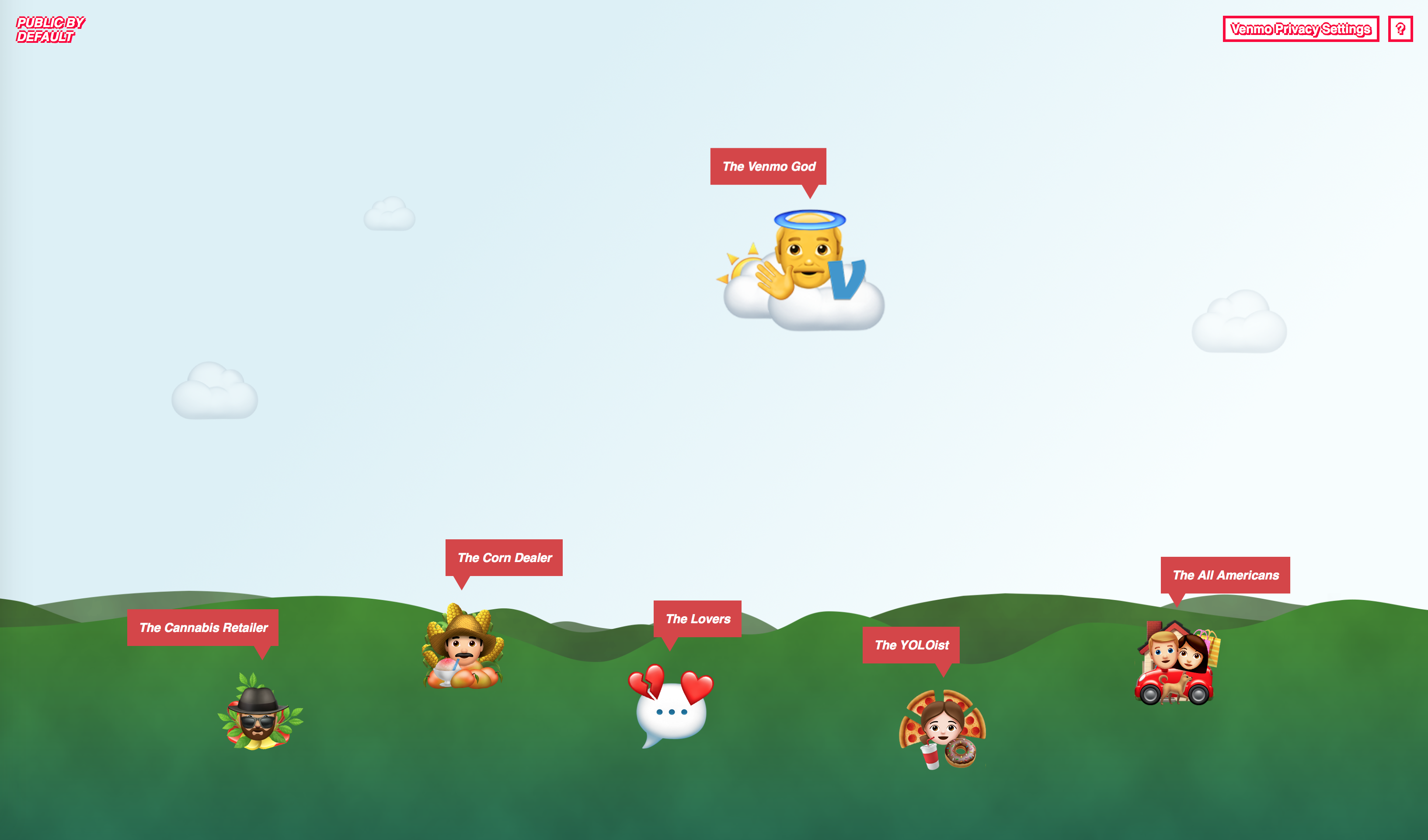
PUBLIC BY DEFAULT - Visiblity Into How Much Data Venmo Make Public
You may or may not have heard about Venmo before, but in the simplest terms – they’re a payment provider that also lets you have an internal balance (quick fact – all payment processing is actually performed by PayPal). They’re one of many FinTech companies trying to do roughly the same thing.
They also have an API. From which you can check out individual transactions, the people that sent/received money, and even identifiable bits of information such as Facebook IDs.
But hang on, what was this I saw on the Venmo website:
Your personal and financial data is encrypted and protected on our secure servers to guard against unauthorized transactions.
You’d probably assume this meant your transactions as well. Turns out these are public by default.
That’s what allowed Hang Do Thi Duc to create PUBLIC BY DEFAULT. Her reasoning behind why she made it:
Many products that we use on a daily basis make it more difficult than it should be to protect our privacy, our most personal information. Many of these products share data (publicly) by default. Venmo is an example of one of these products.
And what an interesting example! One would think that when it comes to money, privacy by design is of greater importance and higher demand. One would be disappointed in this particular case.
I think it’s problematic that there is a public feed which includes real names, their profile links (to access past transactions), possibly their Facebook IDs and essentially their network of friends they spend time with. And all of this is so easy to access! I believe this could be designed better. Why include all this information, when essentially the only interesting part is the message? If you – as a company – actually care about your users and their privacy you would ask this kind of questions.
So, if companies don’t care, I think WE have to take action
The website is rather packed full with examples of the type of data you can extract from the API, and also how you can combine it to recreate stories of peoples lives.
I won’t list of everything, because honestly, I wouldn’t be able to, but there’s a cannabis retailer that had 920 incoming transactions, a few couples that have been having conversations via their transactions, and one young female that had 965 transactions for soft and alcoholic drinks, fast food, and sweets, in just 8 months.
All of this seemingly fun data, also comes packed with personally identifiable information. I’m wondering whether this is breaking GDPR rules.
I’d definitely recommend having a play around on the website, as it really brings to life what information can be realised, just by transactions.
Just to end on a scary note, based on the 207,984,218 public Venmo transactions from 2017, there were 18,429,464 people that had their transactions set to public visibility, 1,731,783 shared Facebook IDs, and 1,189,210 unique last names (from which a pretty cool graph was made).
New USB C cable to charge my iPad
I didn’t want to purchase a 30w USB C charger and Lightning cable just to charge my iPad. But I since realised that I can actually use my MacBooks USB C charger without any issues, so I found this little USB C to Lightning cable on Amazon!
£29.98 originally, but currently £20 off!

Search Bars Belong at the Bottom, Not at the Top
Theo Strauss, writing about Lyft’s new implementation of the search bar, and why its best placed at the bottom:
Although we don’t think about it too often, a search bar all the way at the top of the screen is hard to reach. Especially for users who have smaller hands or users who have less flexible hands, reaching up is annoying, mostly because the top of the screen is far away from where their fingers sit.
If you visualize most apps, the main content is in the middle or lower-mid area. Tab bars for navigation, posts on social media, and keyboards on messaging platforms are all examples of important pieces of experiences sitting in a more reachable position.
I feel exactly the same. The ability to search within an app, or just accessing the main navigational controls of an app, should be the most accessible parts.
In a world where we use tools such as a mouse, or laptop trackpad to direct a cursor around a screen, a classic vertical layout where all navigation is at the top, and the content filling the rest of the space, is probably fine.
However nowadays we interact with content on our displays directly, so it needs to be designed with a human hand in mind, not a cursor.
You can already see Apple pushing developers/designers towards this bottom-up approach, as they’ve added the “pull up” drawer-like component that contains a search bar and results, into the Maps app. This is the approach I feel needs to be standardised going forward, but this isn’t the only approach. As the Music app also follows this idea of having controls at the bottom, with the now playing indicator being there.
I do see this becoming a trend very soon, and I suspect that in a few months quite a lot of apps will be using a sheet similar to the one in Apple Maps. The only drawback is that Apple don’t provide a standard implementation of this bottom sheet, and instead developers either have to implement this manually, or adopt a library from other third-party developers.
I’ve been experimenting with it at work, and I’ve found one library to be very useful, and that is PullUpController by Mario Iannotta. It provides you with a simple one liner to add any view to act as the bottom sheet, and also manages the sticky points, management of inner scrolling views and content, and you can also extend it to your wishes.
Hopefully Apple can share their implementation and more developers can make use of this new interface style.