Chris Hannah Chris Hannah

Chris Hannah

New Dynamic Wallpaper in macOS Mojave Beta 4

I’ve just upgraded my Mac to the latest Mojave beta, and I’ve discovered a new wallpaper!

In a previous update the Desktop Pictures folder was split into two sections – Dynamic Desktop and Desktop Pictures. The first section containing the photo of the Mojave desert, which contained a dynamic, and two still (night and day) versions.

This new one is called “Solar gradients” and comes in just a dynamic format. Of course it’s a rather simple wallpaper, and the majority of the time it’s a two-colour gradient, but it will show you the sun rising, the sky getting brighter, followed by the sun fading away, and a darker blue and black combination for the night sky.

A quick tip – If you want to preview a dynamic desktop, when you navigate to the Desktop & Screen Saver pane in System Preferences, just select the wallpaper, and the preview image will cycle through the different segments.

I don't like using external monitors anymore

When I started my first job as an iOS Developer just over a year ago, I was really excited about my two 23” monitors on my desk. I had every app I’d need for the entire day open and visible for 8 hours.

The past month or so I’ve started to find myself disconnecting my MacBook to eliminate distraction, and it’s certainly working. I find it a lot easier to to focus on what I’m doing if I just have the one window visible.

I could probably just use the one monitor, and keep it minimal with one app always in full screen mode. But I think I just enjoy using a laptop more. It could be down to the fact that I’ve never owned a desktop computer before though, as for the last 10 years I’ve always used 13″ MacBooks.

It feels right to me to do all my work on this small laptop, but it certainly sounds weird in my head.

Developers Share Experiences With Early iOS SDK

With all the nostalgia of the early App Store and iOS SDK days, Frederik Riedel tweeted about his experience developing iRedstone:

After he tweeted that, other developers started quoting it, and sharing their experiences. Frederik has compiled a great collection of them over on his blog.

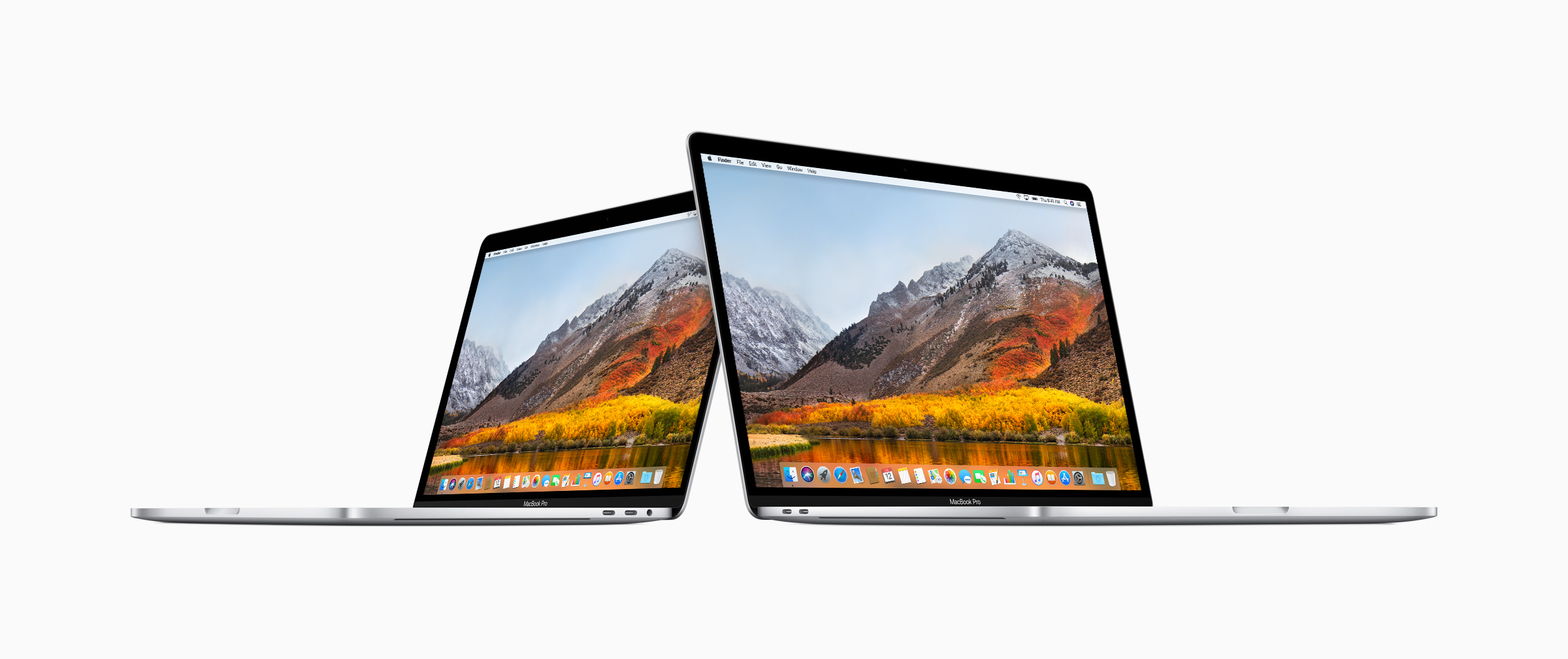
Apple updates MacBook Pro with faster performance and new features for pros

Well this is unexpected, Apple have updated some of their Macs:

Cupertino, California — Apple today updated MacBook Pro with faster performance and new pro features, making it the most advanced Mac notebook ever. The new MacBook Pro models with Touch Bar feature 8th-generation Intel Core processors, with 6-core on the 15-inch model for up to 70 percent faster performance and quad-core on the 13-inch model for up to two times faster performance — ideal for manipulating large data sets, performing complex simulations, creating multi-track audio projects or doing advanced image processing or film editing. – Apple Newsroom

The improvements are to the 13” and 15” models of the MacBook Pro with Touch Bar, and there are also a few extra bits of news. I thought I’d try and extract the key improvements:

MacBook Pros

 Hardware

  • Faster CPUs – Now using 8th generation chips:
    • Quad-core Intel i5 and i7 processors up to 2.7GHz (Turbo Boost to 4.5GHz) for the 13”
    • Hexa-core Intel i7 and i9 processors up to 2.9GHz (Turbo Boost to 4.8GHz) for the 15”
  • Up to 32GB of DDR4 memory in the 15”
  • New HDD options – 2TB for the 13” ad 4TB for the 15”
  • New Apple T2 Chip
  • True Tone
  • Upgraded graphics chips:
    • Intel Iris Plus 655 for the 13”
    • Radeon Pro chips with 4GB of video memory for the 15”
  • The 13” model now ships with 4 USB C ports
  • The keyboard has been replaced with a new 3rd generation butterfly keyboard, which is quieter, and maybe more reliable.
  • Battery capacities have been slightly increased to cope with the newer specs. However, Brian Heater at TechCrunch says that no mechanical changes have been made.

Software

  • “Hey Siri” comes to the MacBook Pro because of the new T2 chip.
  • Also, enhanced security with secure booting, and on-the-fly storage encryption because of the T2.

 Extras

  • There are new colour options for the MacBook Leather Sleeve (13” and 15”) – Saddle Brown, Midnight Blue, and Black.
  • These MacBook Pro’s are also part of the Back to Schoo program, where students can receive a free pair of Beats headphones with eligible Macs.

The First Update to Text Case

It hasn’t been long since the release of Text Case, but I’ve already had some great suggestions, so I decided to add them in!

So here it goes.

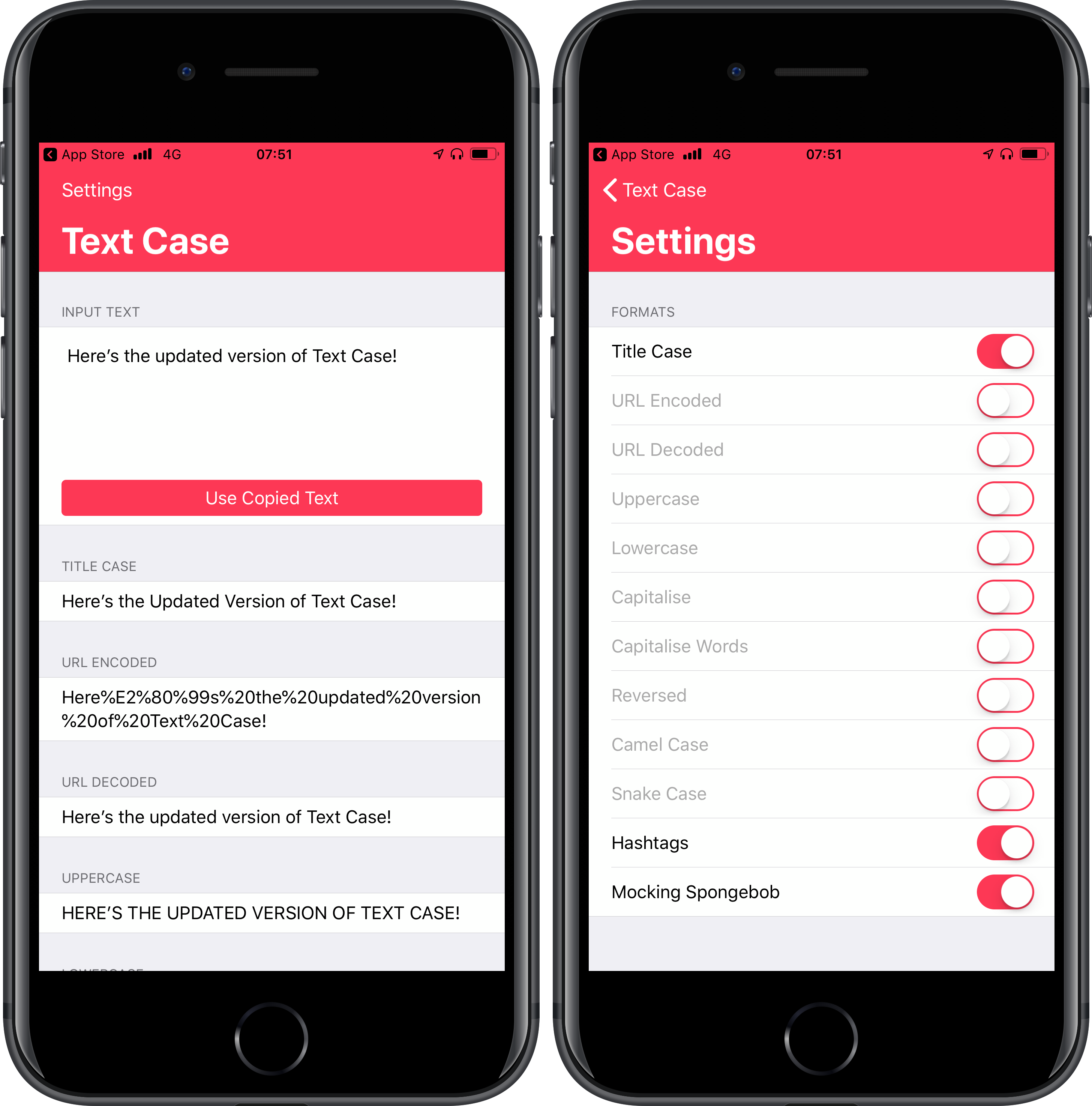
Five extra formats: – URL Decoded – Capitalise All Words – Camel Case – Snake Case – Hashtags

One format has been “fixed”, and that is Capitalise. It now does the obvious and also capitalises the first letter after a period.

You can now choose which formats you want to enable, by navigating to the Settings page, and flipping the switches. This will obviously allow for a more customised interface, as I imagine some people won’t want all 12 formats to show if there aren’t needed.

I still have two things I want to work on. One is the ability for the action extension to be able to replace the original selected text with the new converted value. The other is a pretty great idea that I can’t share until I figure out how exactly I’m going to implement it. But it will be an advanced feature.

I’d also like to say thank you to everyone that has already downloaded Text Case, and I plan to keep adding useful updates!

If you haven’t already, you can download Text Case on the App Store.

Text Case

Text Case is a simple utility that allows you to convert any text into various different formats. It’s available on both iOS and macOS.

It comes packed with an action extension that lets you select text anywhere in iOS, tap the Share button, and then you’ll find the “Convert Text” action. This will show you a preview of all available formats, and a simple tap on one of those will copy it to your clipboard, and you’ll be returned to the original app.

You can also choose to show/hide specific formats by navigating to the Settings page, and also change the order they are displayed in. This will apply to both the app, and the action extension. All settings will be synced across your iCloud devices.

The available formats are currently:

  • Title Case (AP, APA, CMOS, MLA)
  • URL Encoded/Decoded
  • Uppercase
  • Lowercase
  • Capitalise
  • Capitalise Words
  • Sentence Case
  • Reversed
  • Strip HTML
  • Strip/Trim Whitespace
  • Markdown Blockquote
  • Markdown Code Block
  • Markdown Ordered/Unordered List
  • Markdown to HTML
  • Camel Case
  • Snake Case
  • Pascal Case
  • Kebab Case
  • Hashtags
  • Mocking Spongebob
  • Emoji
  • Base64 Encoded/Decoded
  • Rot13
  • Clap Case
  • Shuffled

All formats are available to be used with Siri Shortcuts. Every time you copy or share the result of a text conversion, iOS will be made aware and can suggest these actions to you in the future. You can also manually add a format to Siri by going tapping on Settings, and then the “Add to Siri” button at the bottom.

Download


Blog Posts

Guides

Here are a few guides that may help you using the various parts of Text Case:

Support

If at any point you need some help with Text Case, or you want to give some feedback, then you can reach me via Twitter, or email.

Text Case Has Been Released!

I’m very glad to announce that Text Case is now released, and is live on the App Store!

Text Case is a simple utility that allows you to convert any text into various different formats.

It comes packed with an action extension that lets you select text anywhere in iOS, tap the Share button, and then you’ll find the “Convert Text” action. This will show you a preview of all available formats, and a simple tap on one of those will copy it to your clipboard, and you’ll be returned to the original app.

The available formats are currently:

  • Title Case
  • URL Encoded
  • Uppercase
  • Lowercase
  • Capitalise
  • Reversed
  • Mocking Spongebob (This one is for fun)

More formats will be added in the future!

Download Text Case on the App Store!

I’ve Decided to “Just Ship” Text Case

I’ve been working on a small project called Text Case for a while now. It’s had my attention in small bursts, and I think it’s finally ready to be classified as a 1.0.

I won’t write a whole essay about it just yet, but it’s a utility app that converts raw text into various different formats. The main one being title case, which is very handy for me personally.

Along with the base app, it comes with an Action Extension, which you can access by selecting a portion of text, and then accessing the Share sheet. You then get to preview the possible formatted versions, and just one tap will copy it to the clipboard, and it’s dismissed.

I can already think about different ways the app can be expanded, but I don’t want this to become a habit of mine, where I never ship something because I always want to add one extra thing. There’s definitely going to be edge cases where formatting won’t be perfect, I’m thinking the title case will be 100% of these, but I can fix these quite fast.

But for once, I’m just going to ship an app, and see how it’s goes.

Here’s a preview:

Nancy Pearl's Rule of 50 for dropping a bad book

Nancy Pearl, writing for The Globe and Mail:

It wasn’t until I became an adult, and a librarian, that I began to question my commitment to finishing each and every book that I began. Now that I really was living a major portion of my life in the library, I literally found myself surrounded by books, tempting me, calling to me from the shelves. How could I – in one lifetime – ever get through everything I wanted to read if I had to finish those books that I discovered to be (at least to me) boring, badly written or just plain bad?

It dawned on me that maybe, just maybe, I didn’t have to finish every book I started. Gradually my attitude changed, but not without a struggle. I felt bad for the authors whose books I gave up on. Didn’t they deserve a full chance to entice me into the world they’d created? I could hear their voices in my head, like the voice of my conscience, saying, “Wait, wait, it gets better! You haven’t gotten to the good part yet.” Oh the guilt, the guilt!

This is a very good tip if you want to read more books. I noticed myself that I would become stuck on a boring book, and I wouldn’t allow myself to read anything else. And that really messes things up.


So now, I just put a book down whenever I’m bored of it, and then pick it back up when I am. It certainly makes my “Reading” section in GoodReads look rather packed, but it’s a good problem to have.

Read the full post.

‘My daring grandfather took a bit of East Berlin for himself’

Photo (Top): KALIN

One of the most extraordinary stories I’ve ever read. It’s about a man that decided his land wasn’t for taking, how he interacted with the government, and how the community respected him.

Elaine Chong, writing for BBC News:

In 1982, a Turkish immigrant started a garden near the Berlin wall on a patch of East German land. Osman Kalin fiercely defended his small domain from any authorities who tried to take it away. Though he died this year, his family are still looking after the plot and the tree house he built there.

Read the full story.