Journal: 13 Jan 2019
It turned out I wasn’t as productive today as I thought I would be. I had planned to work on the rest of the settings in Text Case, but it simply didn’t happen!
Me and my girlfriend had our weekly trip to the cafe, where our drinks were brought to us before we even ordered! We were then asked if we wanted the usual, we said yes, and they were brought to us! It may be a sign we go too often, but I find it rather efficient.
The rest of the day has just been both of us playing games on our laptops. I played World of Warcraft while she played Sims!
Maybe I’ll do a bit more work tomorrow.
Journal: 12 Jan 2019
Well, I guess I could say today didn’t start very well. Arsenal were playing the early kick-off this weekend (12:30) against West Ham, a team we should easily beat. However, the team selection was a bit off (No Mesut Özil), and it just was a bit flat. We lost 1-0, with their goal coming from a mistake from an Arsenal player. Thank god I have a bad memory.
Slightly during the game, my girlfriend was watching a series called Bodyguard. It turned out to be really interesting, and even though I only watched the last 2 episodes (6 total) of it, I worked out the entire plot, so I now don’t have to watch the rest!
The rest of the day has sort of been a rotation of three things, watching nature documentaries, working on Text Case, and playing World of Warcraft. I watched at least three episodes of Planet Earth (the first series) in a row, and then some I don’t even know the name of.
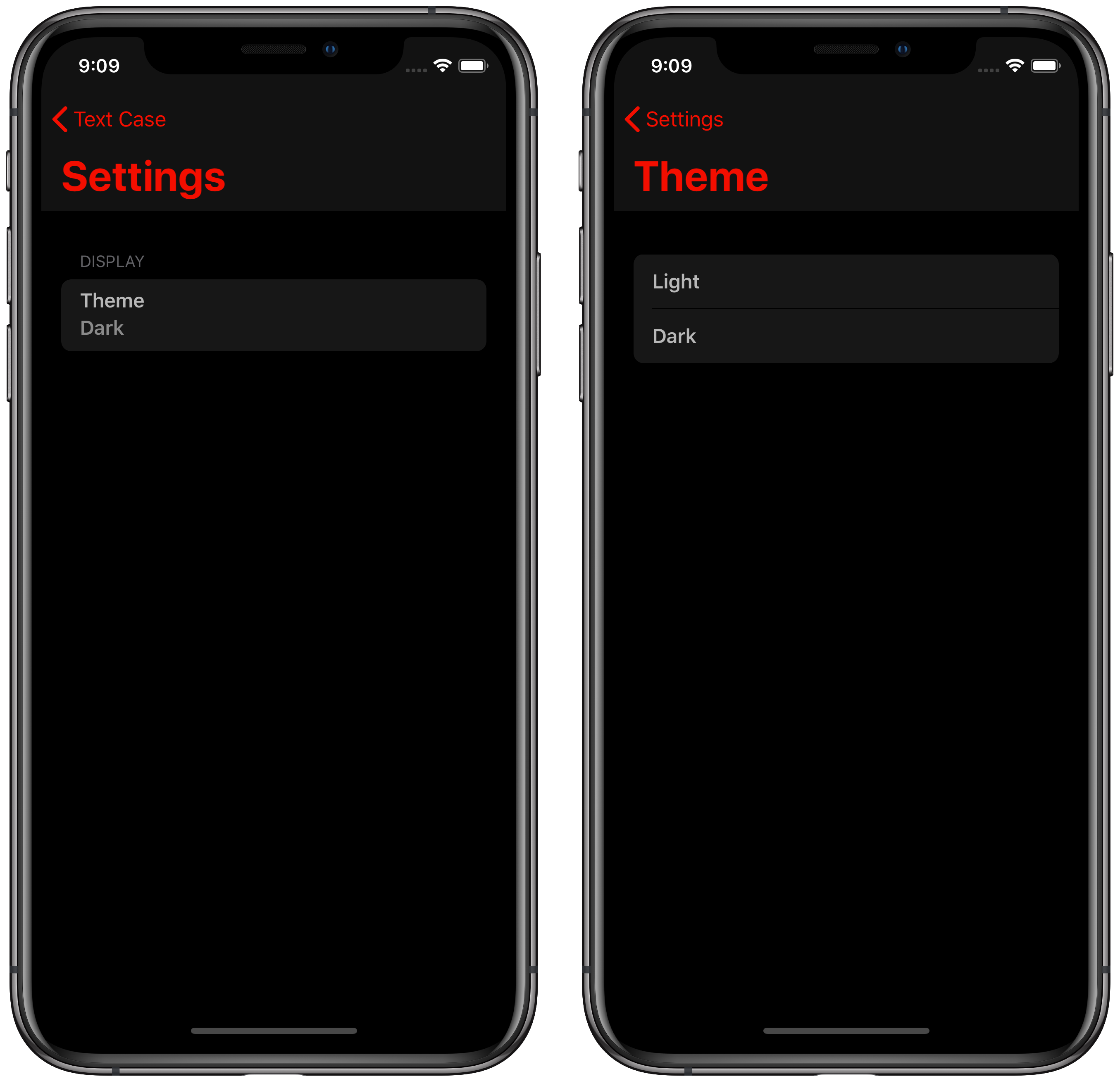
For Text Case, I was working on the Theme select tool. I had the list of settings “working” yesterday, but you couldn’t select anything on it. Today I wrote a generic way to select a setting from the menu, have it open a list of options, then after selecting one, have it reflected in the app. It works with the Themes pretty easily, as that’s not exactly a complex setting. But tomorrow I’ll have a look at importing all the settings in the current app to this new version.
Journal: 11 Jan 2019
There’s a bit more variety today.
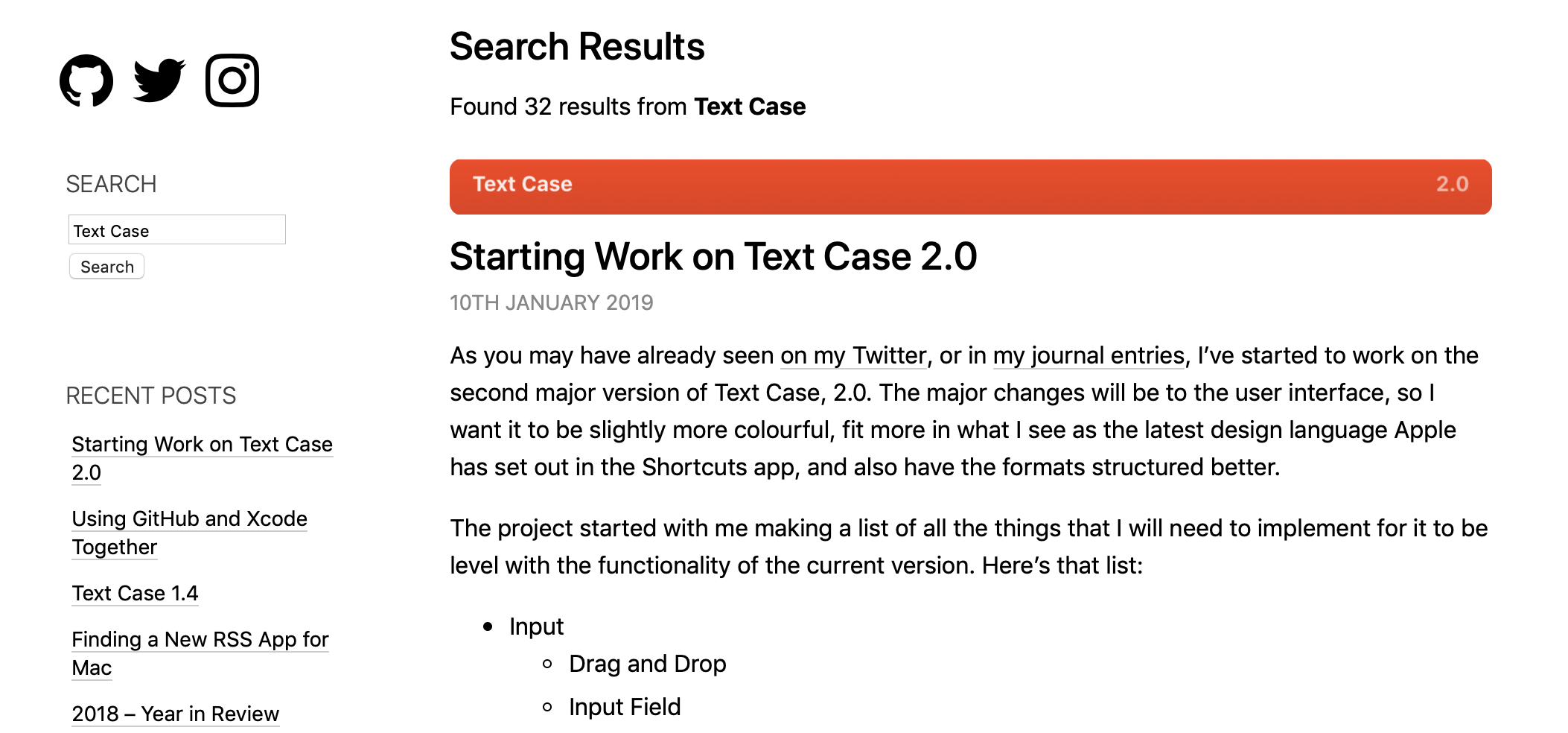
I did something that I probably should have done a while ago, and that’s adding search to my blog. My blog runs on WordPress, so it only took adding a widget to the sidebar, and writing a small template for the results page. For some reason I’ve been putting it off. But it makes it so much easier to find old content.
While I was at work, I decided to start using my Apple Extended Keyboard II again. I stopped using it for a while, simply because I moved desk and I’ve been working mainly just from a laptop. But I’ve gotten used to the various different function keys for media and mission control. My current solution with the AEKII is trying out Keyboard Maestro. I have some custom macros set up for the function keys, and they’re media controls, volume, mission control, show desktop, etc. Hopefully I can make more use of it, then I’ll be purchasing a copy.
One section that I feel is going to become regular in these posts, is my podcast listening. I managed two episodes today:
- Star Talk Radio S04 E1: Food, Science, and Culture, with Anthony Bourdain
- Core Intuition 356: Reach For The Stars
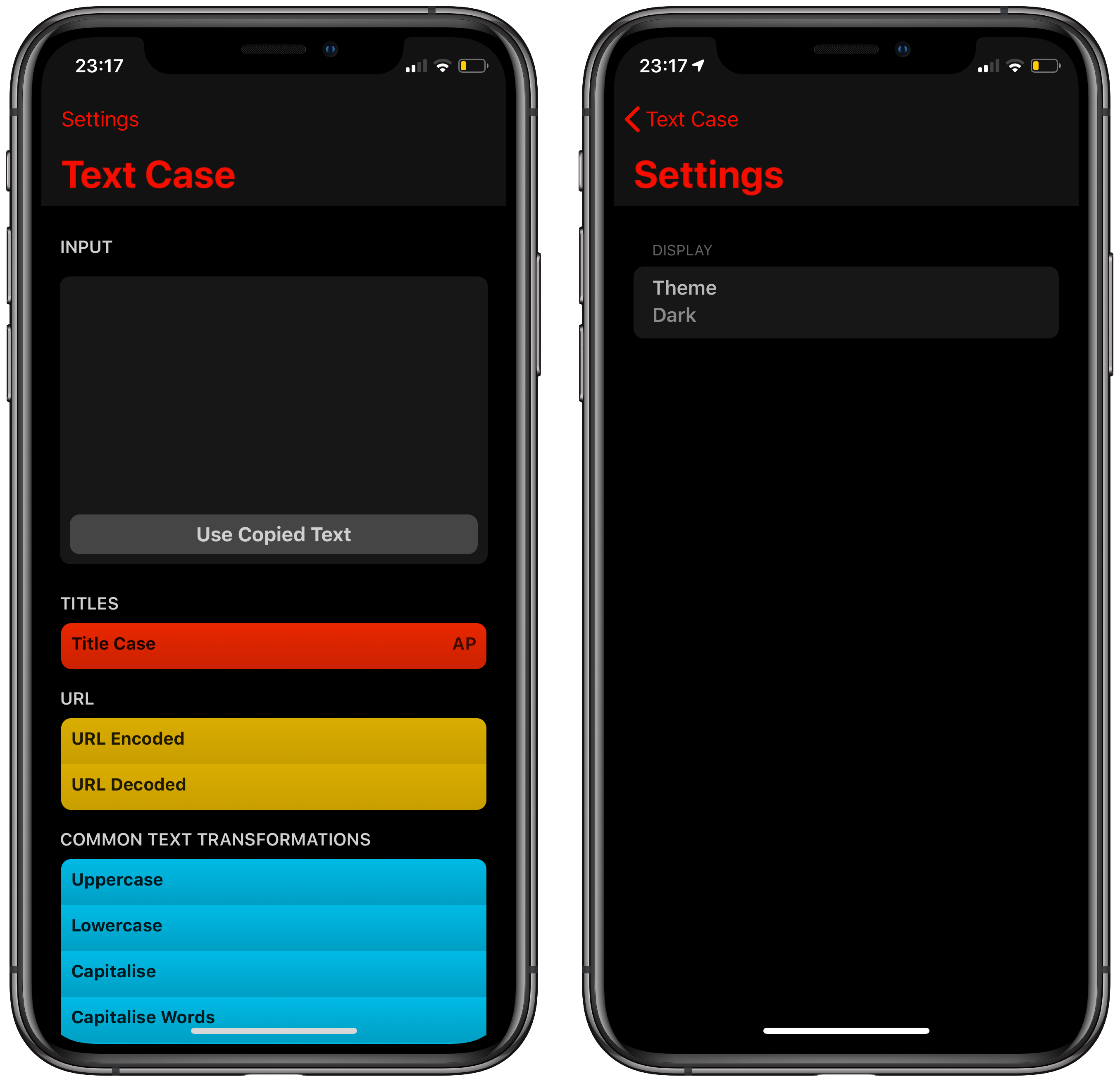
Of course, I did a bit of work on Text Case 2.0 again today. I tightened up a few things from yesterday, like fixing scrolling lag (that was due to me messing around with rending shadows on every format, which gets updated every character you type), and some colour contrasts. I then started working on the Settings, where it currently only shows the theme. It actually doesn’t work right now, so you can’t even select it. But a lot of the work I did here were the foundations of how settings are stored, and actioned upon in the app. So once that is complete, the whole system is quite modular, which will be nice for future me that may have to update it.
Journal: 10 Jan 2019
As promised yesterday, I wrote a post about the current progress on Text Case 2.0. I’ve done a bit more work on it today after that post as well, but it’s mostly been non visual stuff. But for the UI, I’ve added a small shadow/glow to the edge of the formats, and also changing the text colours to increase the contrast ratios.
Apart from that, I’ve also consumed a lot of media today. I watched loads of videos from a YouTuber called Nixxiom who mainly does videos about World of Warcraft, and I’m a massive nerd.
I also listened to a lot more podcasts than usual. It was pretty quiet at work, so I had a lot of time just working away with my headphones on. Here are the episodes:

Starting Work on Text Case 2.0
As you may have already seen on my Twitter, or in my journal entries, I’ve started to work on the second major version of Text Case, 2.0. The major changes will be to the user interface, so I want it to be slightly more colourful, fit more in what I see as the latest design language Apple has set out in the Shortcuts app, and also have the formats structured better.
The project started with me making a list of all the things that I will need to implement for it to be level with the functionality of the current version. Here’s that list:
- Input
- Drag and Drop
- Input Field
- Use Copied Text
- From File?
- Keyboard Shortcuts
- Global Paste
- Formats List
- Tap to Copy
- Hold to Share
- Siri Shortcuts Support
- Add to Siri
- Shortcuts App
- Backwards Compatibility
- Action Extension
- Settings
- Theme
- Light
- Black
- Title Case Format
- Reorder Groups
- Enable/Disable Formats
- Custom App Icons
- Theme
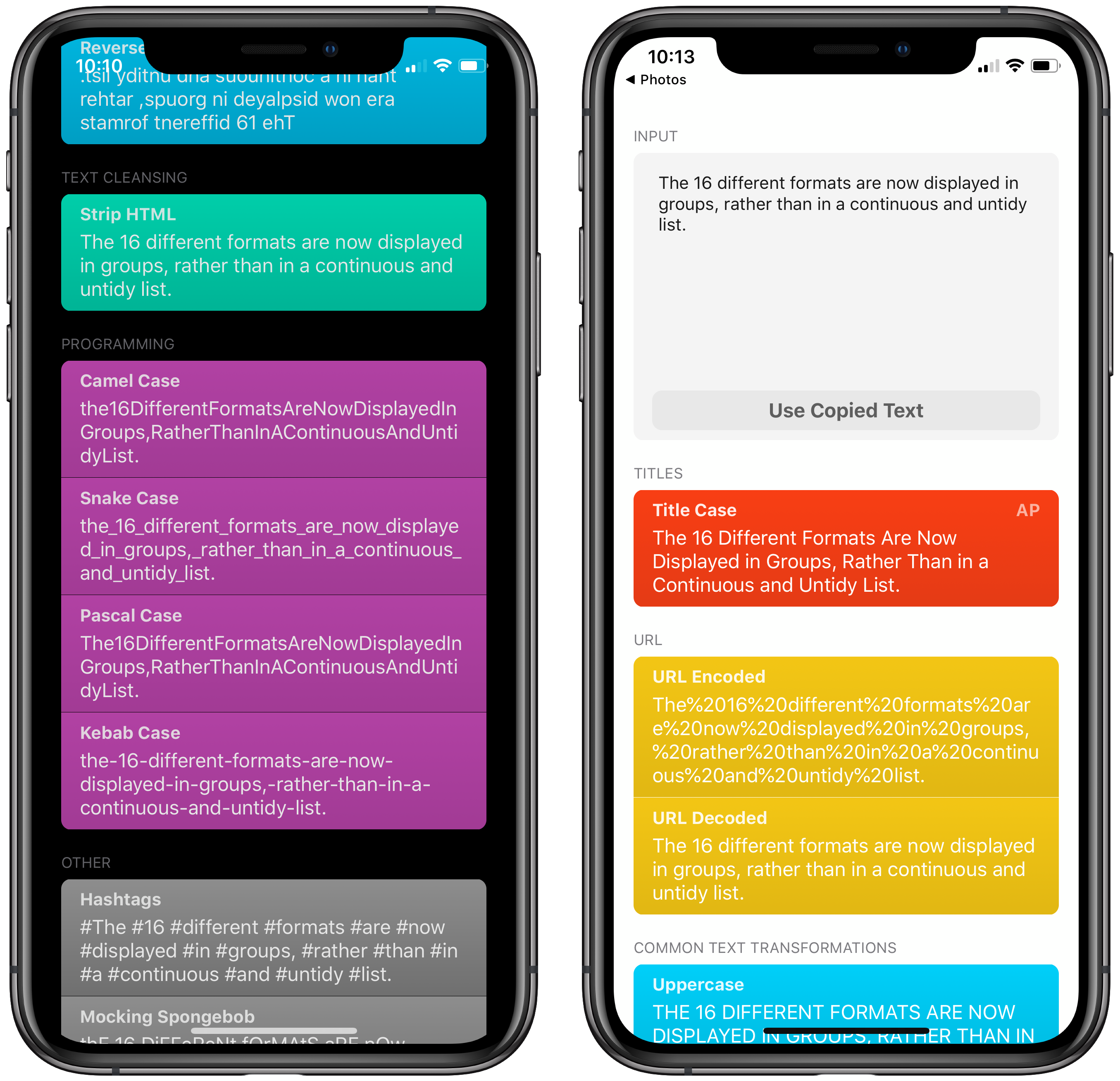
I started working on the most important section of the app, the formats list. Over the past few days I’ve been building up the style similar to the Shortcuts app, so instead of being simple white boxes that contain the formatted text, they’re more colourful and even have a slight gradient to add a bit of depth (I’m planning on experimenting with a small shadow as well).
So once the list was working, I added the core logic from the current version and made the formats work. I did adapt it slightly though, as it now groups similar formats together, which I think makes the app look a lot tidier. This change means that when I add the reordering feature, it will most likely me limited to reordering the groups rather than individual formats. You’ll still be able to hide any you don’t want to see though.
Then I added the input field. It’s also a bit cleaner, and fits with the new style. But it has essentially the same capabilities as before. I plan on investigating importing text from a file, and implementing drag and drop, but I think that’s supported automatically.

After I had the list displaying, input working, and the text being formatted, I worked on the interaction with the resulting formatted text. I’ve had a few bits of feedback in the past saying they would appreciate one-touch copying, and now I’ve added it! So you can simply tap any formatted text in the app, and you’ll get a nice alert at the bottom showing the exact text you’ve copied. Or alternatively, you can still tap and hold on formatted text to bring up the contextual actions, which are the same as before, copy and share.
The next step from here will be to start working on the settings section of the app, as that also allows me to test the rest of the app in different scenarios much easier. I’m already planning two changes to the settings in this new version. The first is changing the idea of an accent colour to a theme, as I want the format groups to control the colour. But I also appreciate that a light and dark theme is a minimum. The second change is custom app icons, they may be a basic selection, but the app no longer has a “main colour” so I’d like to give a few options.
If you want to stay up to date with the development of Text Case 2.0, You can find more regular content on my Twitter, brief updates on my journal, and I’ll still post any major progress here.
Journal: 9 Jan 2019
A very productive day today!
I got a ton of work done on Text Case 2.0. So much that I think it deserves it’s own blog post. I’ll probably write something about it tomorrow, because by then I would have done a bit more on it as well. Because of that, I wont go too much into detail, but I mainly worked on the beginnings of the input section, how the app manages themes, and then the interaction inside the app.
It’s going a lot faster than I thought it would. But every time I look back at the feature list I’ve created, I realise how many features I’ve added already. For example, I’m going to have to make sure things like the Siri integration is the same. It may look slightly different in the app, but I don’t want it to break anything.
One thing I have to say to reassure people, is that I have no desire to push this out as fast as possible. Text Case is a very stable app, and people seem to like it. So I will only release something that is better.
Just for fun, here’s another preview:
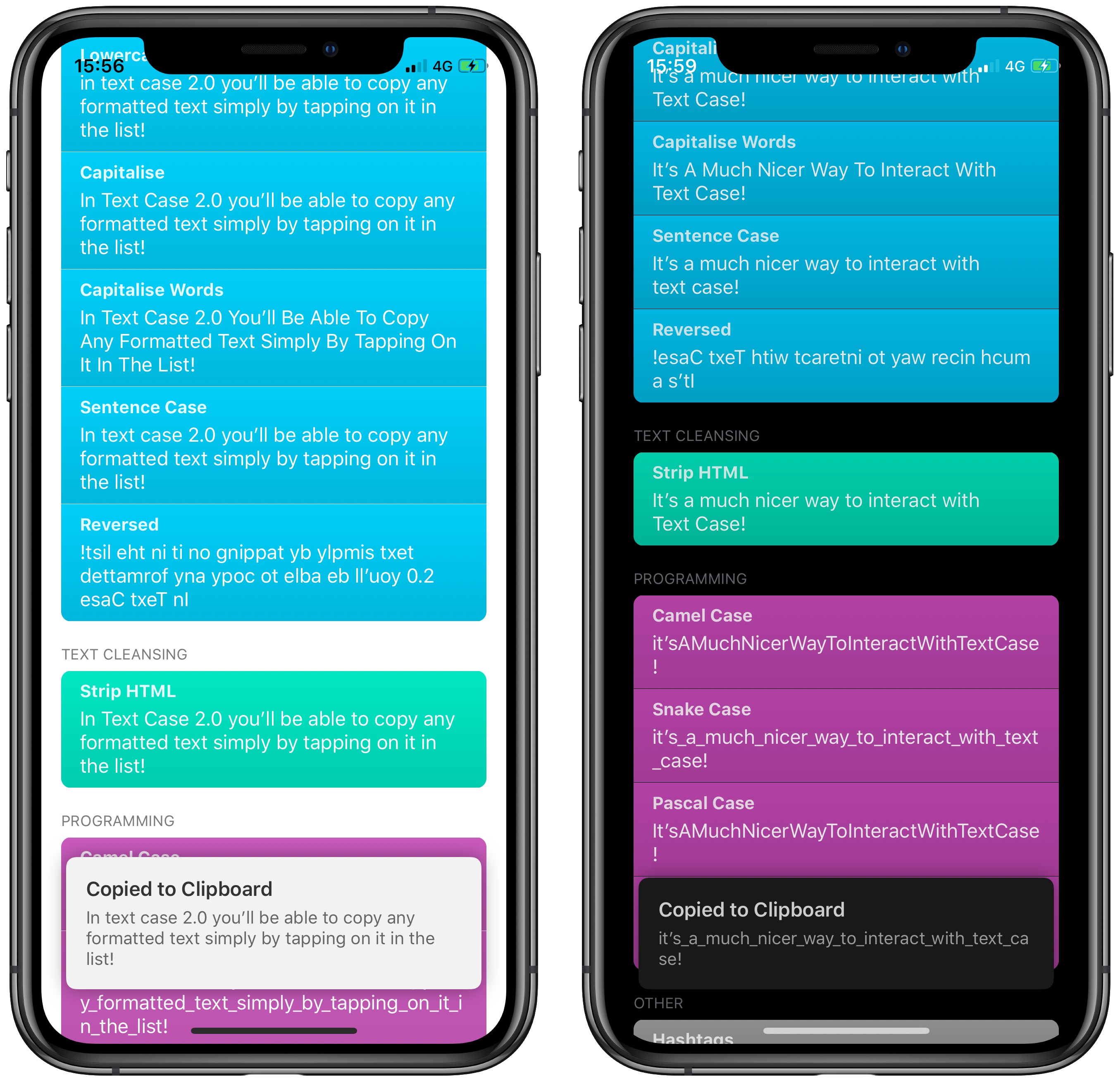
Oh and something not related to Text Case. I listened to a great podcast today, it was episode 36 of Daryl Baxter’s The Outpost Show which featured Federico Viticci of MacStories. I’ve now subscribed to the podcast, and I look forward to future episodes!
Journal: 8 Jan 2019
Today started like any other work day, and I didn’t think I’d have anything interesting to write up. But it turned out to be quite productive!
In my lunch break I added HTTPS to my main domain (chrishannah.me), simply because I found it so easy to add it to this blog.
I then spent loads of time wondering about my next project, until I posted a single tweet, that seemed to have started a huge chain-reaction inside my head.
Maybe the big project I’m looking for is actually Text Case 2.0. 🤔 – @chrishannah
I then had a burst of ideas about where I could take it. About the overall design of the app, how I structure the formats, and how the efficient the user interaction is. All this while concurrently going over the current code structure in my head.
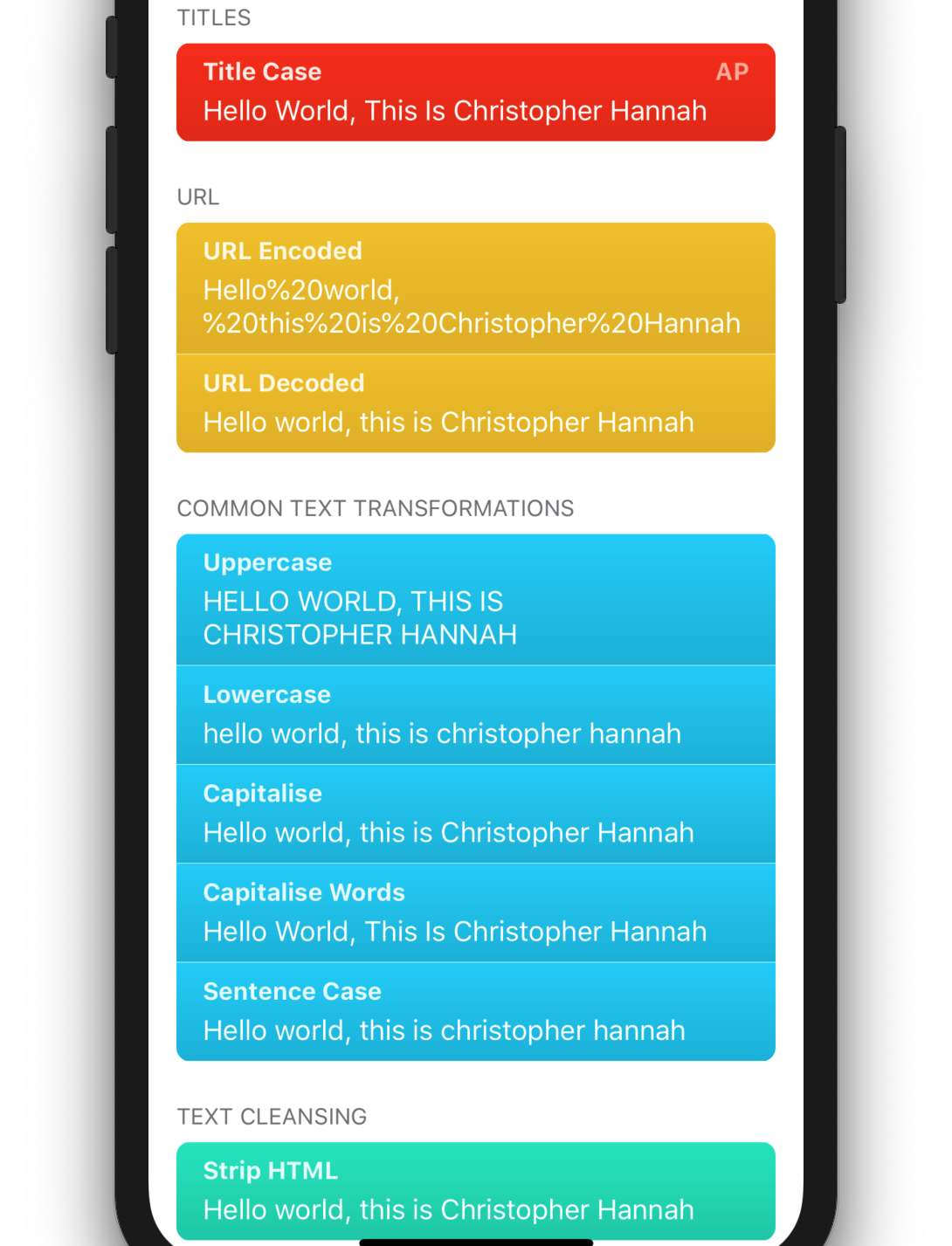
So when I got home from work I immediately starting working on a fresh project. I’ve so far got the main list of formats rendering, in some kind of logical sections. I can see the direction I want it to head in, and I think it’s represented in this first draft, but obviously the design is super early on.
So take this preview with a big pinch of salt:
Let’s see where I can take this tomorrow!
Journal: 7 Jan 2019
It’s Monday, so I’m back at work! Although I didn’t do anything worthwhile talking about here, as it was mainly admin tasks for our annual performance reviews.
However, I did get round to completing a task that I’ve been wanting to do for a while. And that was to create a new guide about connecting an Xcode project to a GitHub repository. The one I wrote nearly a year ago has become rather outdated, as the source control features in Xcode has improved significantly. I’ve made some modifications to the guide before, but it really needed a whole refresh. So I’ve done it, and you can read my “Using GitHub and Xcode Together” guide now!
I also linked to two other posts on my blog today, the first being a review by Michael Rockwell of the MacBook Air, and the second being a very interesting take on why bamboo wood isn’t a bigger industry.
To end the day I caught up on my YouTube subscriptions, nearly everything in my RSS reader, and just a little bit of World of Warcraft. Now I just need to find one more thing to watch before I go to bed, while I still ponder what my next project will be.
Why Isn't Bamboo Wood a Bigger Worldwide Industry?
Well, that’s the shortened version of the question that asked on Quora:
“Why isn’t bamboo wood a bigger worldwide industry, since it grows so quickly and is so strong? couldn’t it replace lumber and save many trees?”
It’s a question that I’ve often thought myself. You hear regularly about how bamboo is such a superior resource for many things, but I’ve never seen an objective reason why it’s not as widely used.
But in his answer, Raphaël du Sablon came to our aid with some very interesting reasons:
Okay, here is the long answer. Bamboo is the collective name for several dozen genera of grasses, all in the Bambusoideae branch of the “BOP” clade.[1] While most bamboo species are either shrubby or relatively short plants, a couple genera include particularly large species, typically called “timber bamboo” or “giant bamboo.” These are the bamboo of relevance.
Being in the grass family, bamboo is not a tree. Thus, material cut from bamboo stalks is not technically “wood.” Because of its roughly similar properties, however, and for marketing reasons, it often is referred to as a wood.
With that pedantry out of the way, let’s consider the uses of wood, and how bamboo compares. The big ones are fuel, lumber, and paper.
Using GitHub and Xcode Together
It’s been just under a year since I published my article on how to connect an Xcode project to a GitHub repository. Since then, Xcode has kept being updated with new Source Control features, and the guide started to break. So I’ve decided to start fresh and show how you can quickly and easily use GitHub to track your Xcode project.
The Xcode used for this guide was version 10.1.
We will first go through initialising a Git repository, finding the Source Control features in Xcode, and then either link it to an existing GitHub remote, or create one directly inside Xcode.
Initialising a Git Repository
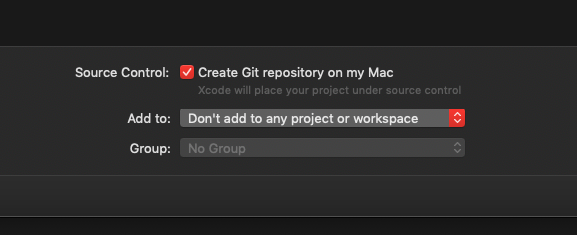
You will need to make sure your project is inside a Git repository. The easiest way is to check the “Create Git repository on my Mac” checkbox when first creating the project, but you can also use the git init command1 to create one inside the root folder.
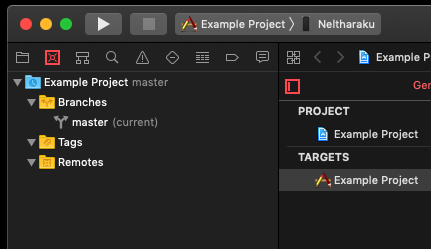
Once your project is being tracked by Git, you will see your project in the Source Control pane on the left of Xcode. It’s the second icon from the left, and you can quickly access it using CMD + 2.
This shows any local branches, tags, and also any remote repositories you have set up, along with remote branches. So you’ll be able to use this pane, along with the Source Control option in the menu bar to manage your repository once it is set up.
Setting Up a Remote

From this stage you have two options, you can link this repository to an already existing remote you have set up, or you can use Xcode’s new tools to create a new one. Either option can be found by right-clicking on the Remotes folder.
I’ll go through both methods.
Using an Existing Remote
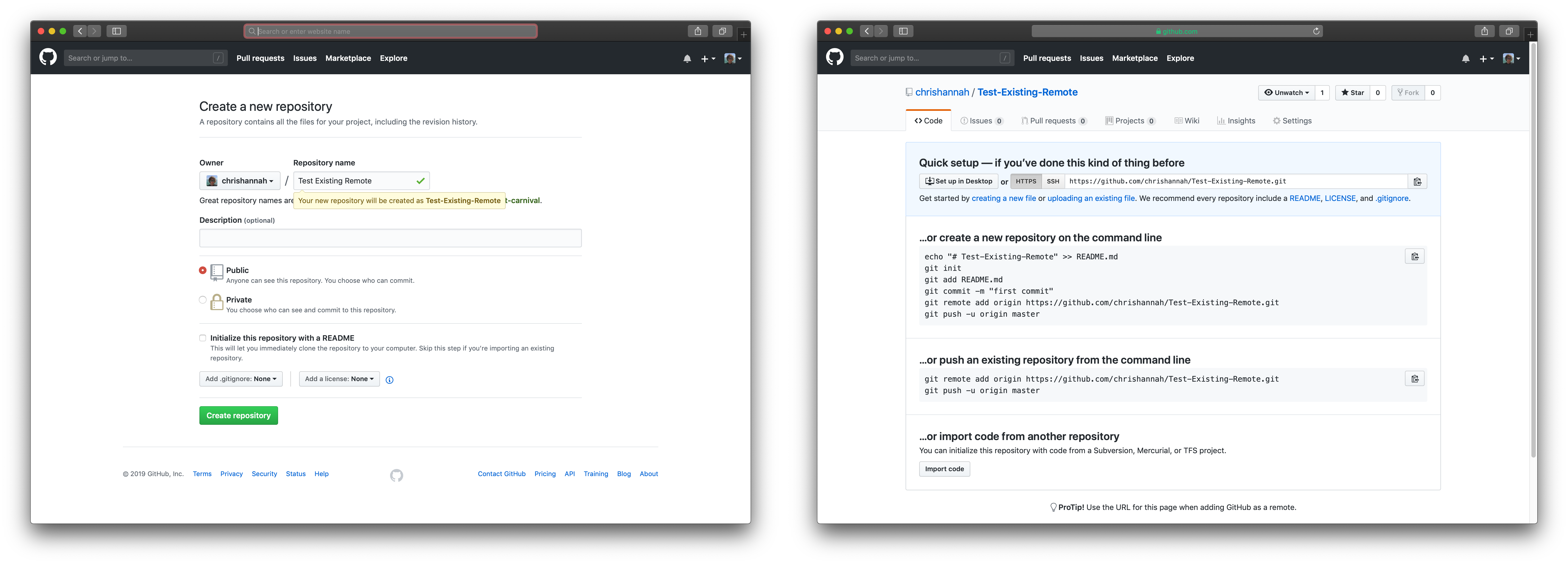
For this example, I created a blank repository on GitHub. Once a blank repository is created, they show you a few ways to initialise the repository. However the only thing you’ll need is the URL address inside the Quick setup section. For me, it’s https://github.com/chrishannah/Test-Existing-Remote.git .
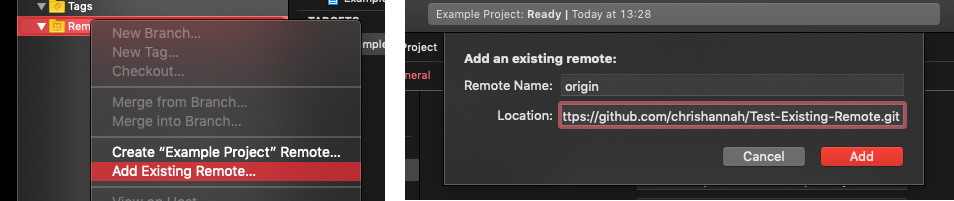
So if you go back to Xcode, right click on Remotes, and select Add Existing Remote, a new window will appear from the top prompting for the location. You just need to paste in the URL you got from GitHub, and select Add.
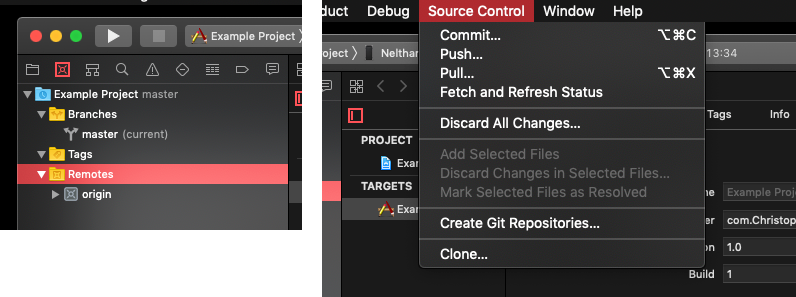
Once you’ve done that, you should see the new remote appear in the Source Control pane, and you’ll be able to commit, push, pull, etc. from the menu bar in Xcode, along with the usual places.
Create New Remote
If you haven’t got a remote repository set up yet, this is the easiest way to do so, and you don’t even have to leave Xcode.
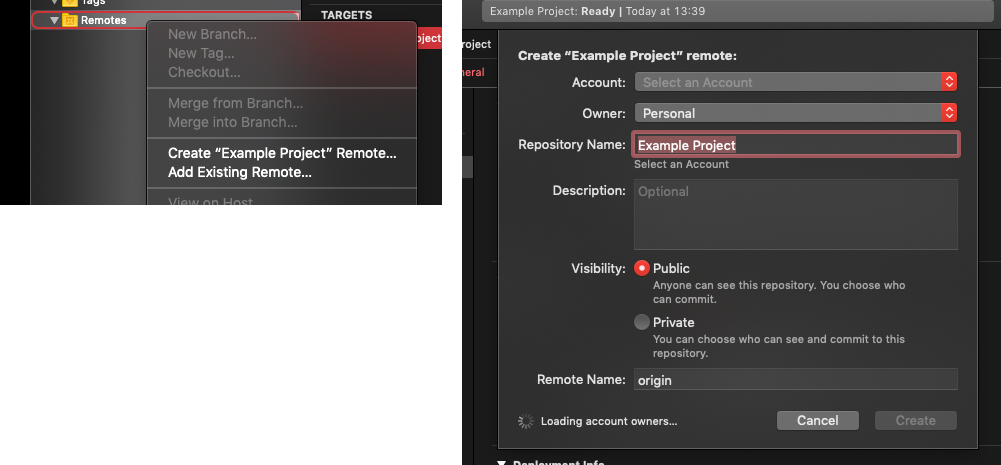
Like before, go back to the Source Control pane, right-click on Remotes, and select Create “Project Name” Remote. You’ll then be presented with a window where you can customise the new repository you will be creating.
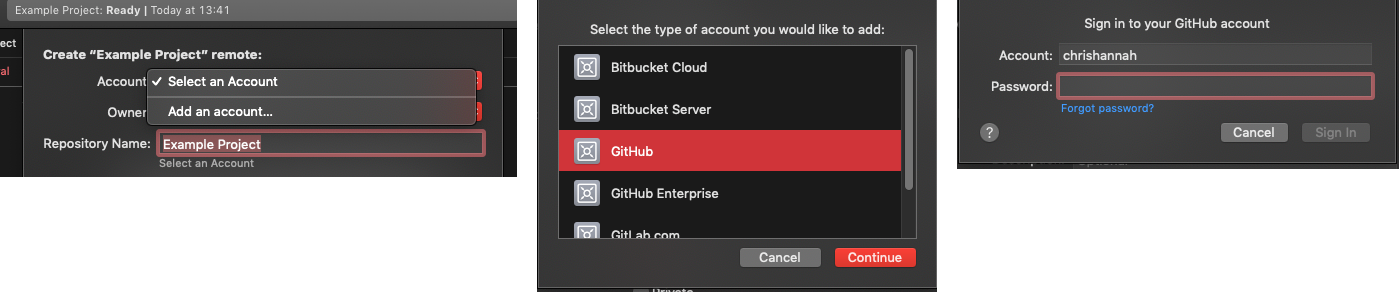
First of all, you’ll need to connect your GitHub account if you haven’t already. To do this just click on the Account drop down menu, tap Add, and then enter your GitHub credentials.
You can then enter a repository name, which will also dictate the URL, an optional description, the visibility of the project, and name you will call the remote in Xcode. The default options are usually fine, although you may want to make the repository private. The last field, remote name, can be left as the default “origin. This is just a label you can give to the remote repository, and if you used multiple, it would be helpful to distinguish each of them. Origin is just the conventional name that most developers use.
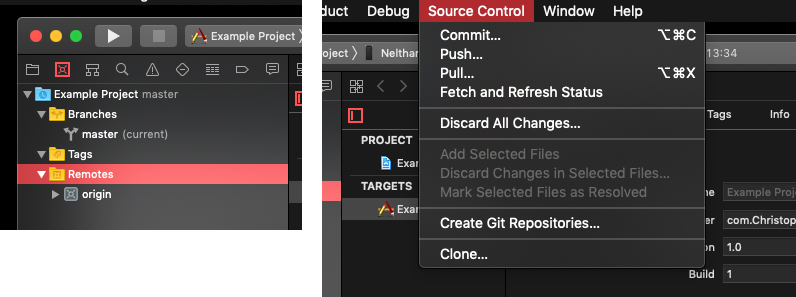
Xcode will then create the repost on GitHub, and push your code. You should then see the new remote appear in the Source Control pane, and you’ll be able to commit, push, pull, etc. from the menu bar in Xcode.
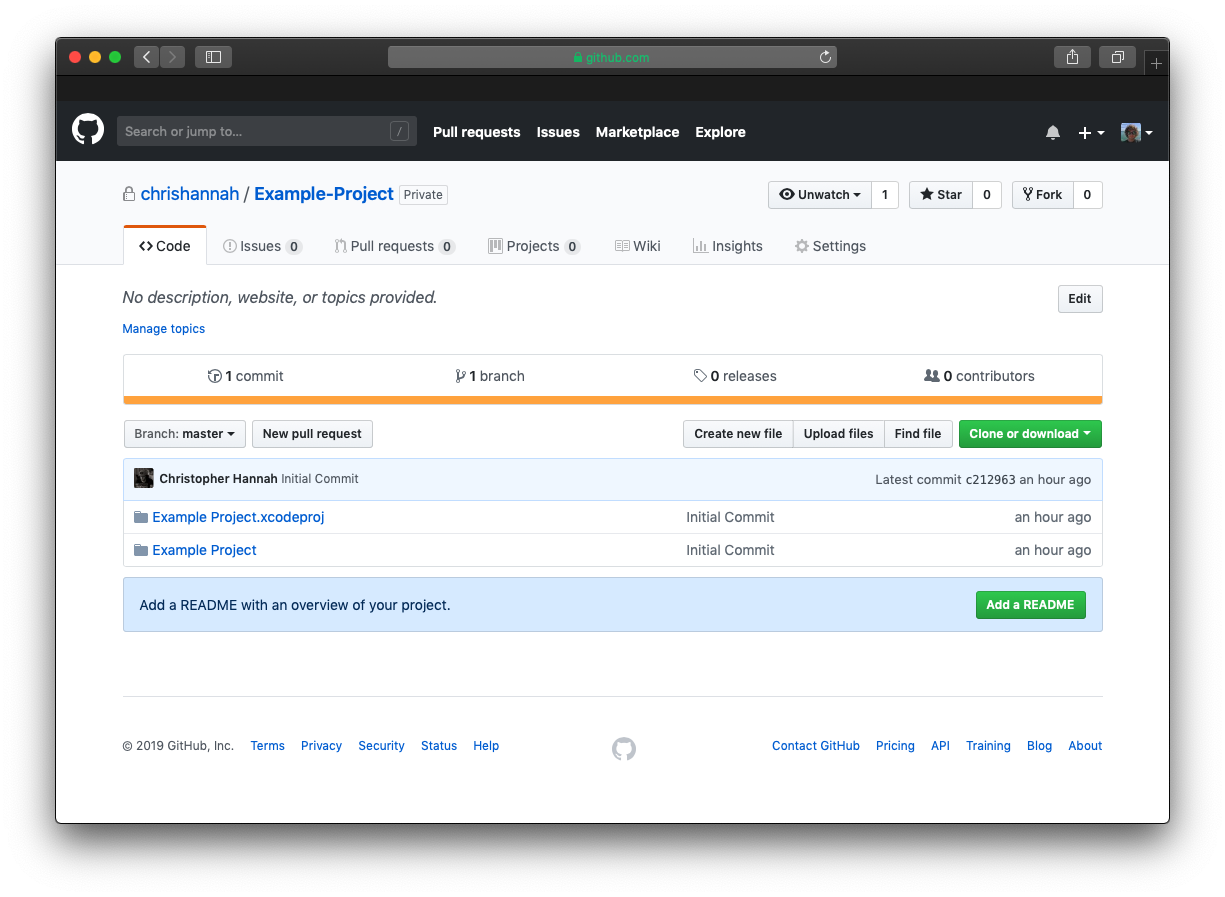
You’ll also find your code on the remote repository on GitHub.
I hope you found this guide helpful. If not, then please let me know either in the comments below, or on Twitter where I’m @chrishannah.